Schedule & Take Driver Breaks
Last updated: June 5, 2026
Breaks are important for safety, compliance, and keeping your team performing at their best. Bambi lets dispatchers schedule breaks for each vehicle's scheduled Crew (Driver and Attendants) directly on the Dispatch Calendar, and drivers can view their upcoming breaks in the Bambi NEMT Driver App.
Scheduled breaks are automatically excluded from Run Bambi Run calculations. You can still manually assign a trip to a driver that overlaps a break, but we'll pop up a warning to ask if you're sure.
To schedule a break from the Dispatch Calendar:
Go to the Dispatch page.
Find the column for the driver who needs a break.
Click the three dots (⋮) menu to the right of the driver's name.
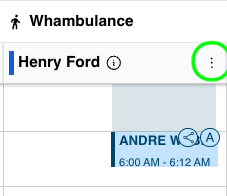
Select Add a break.
Fill in the break details — start time, end time, and any notes.
Click Save.
The break block will appear on the calendar for that driver at the scheduled time.
To edit or delete a scheduled break:
Click the break block on the Dispatch Calendar to open its details panel.
Click the three dots (⋮) menu.
Select View/Edit to modify the break details, or select Delete to remove it.
How drivers see breaks in the Bambi NEMT Driver App:
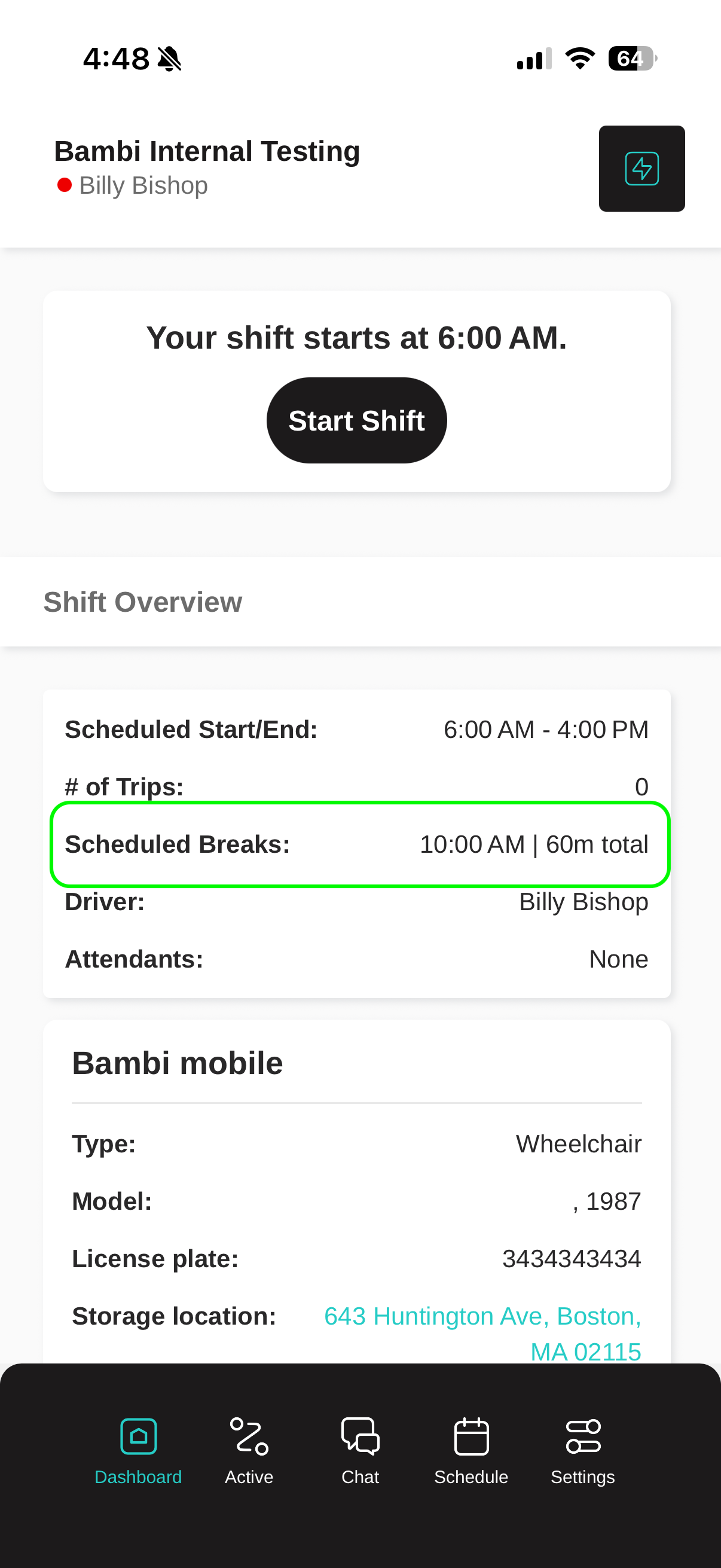
Breaks always appear in the Dashboard and Schedule tabs of the driver app so drivers know what's planned for their shift.
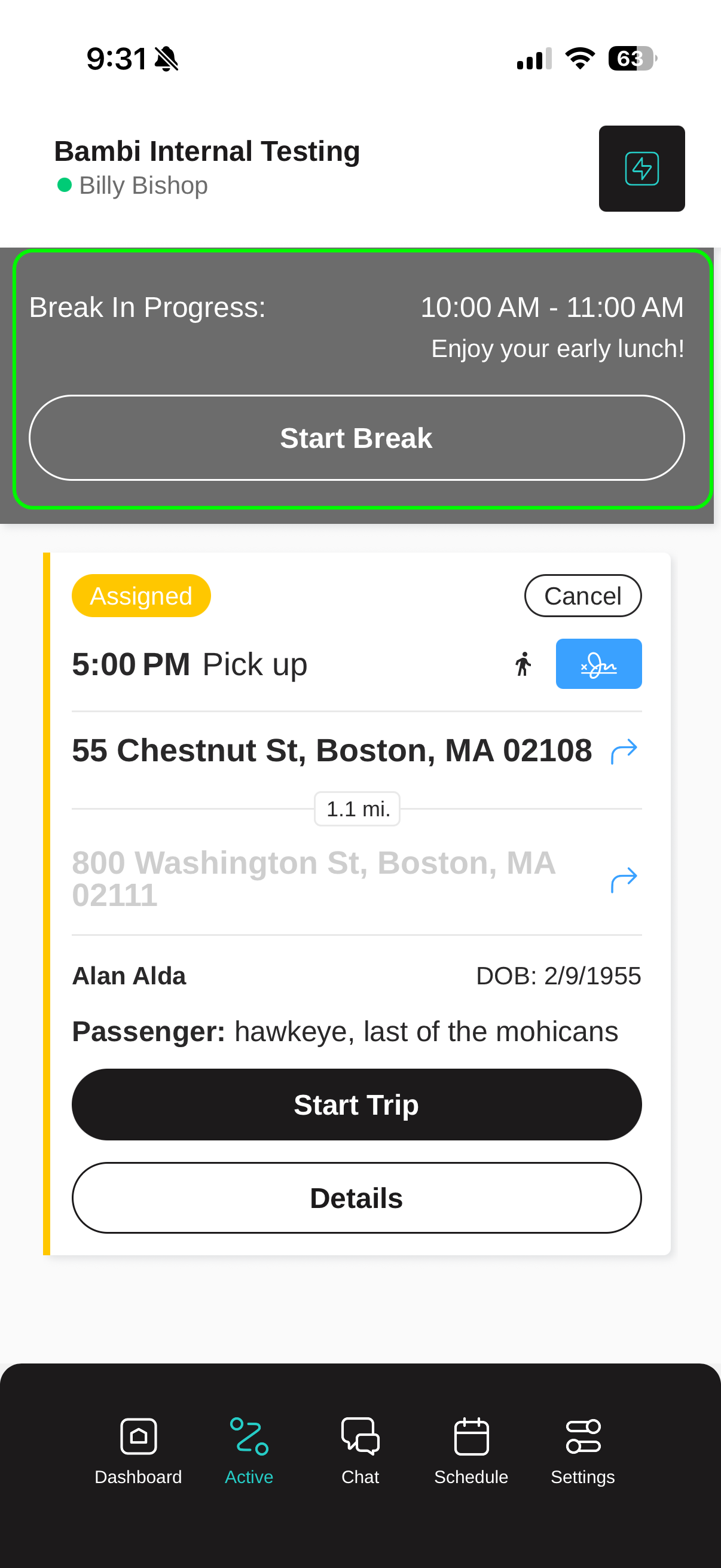
When a scheduled break is within 1 hour of the current time, it also appears on the Active tab. Drivers can start their break any time after it becomes available by tapping the Start Break button. This clocks the driver out for their break time. At the end of their break, they need to tap the End Break button to clock back in and resume their trips.
Why is a break blocking a trip assignment?
Scheduled breaks are treated as unavailable time. Bambi won't auto-assign trips during a break window. You can still manually assign a trip to a driver that overlaps a break, but we'll pop up a warning to ask if you're sure. We recommend that you move or shorten the break if you need that time window for a trip.