Adding Drivers
Last updated: March 27, 2026
After creating a user account profile for new team members it’s time to pick your drivers.
Drivers must have a member account setup before being added as a Driver
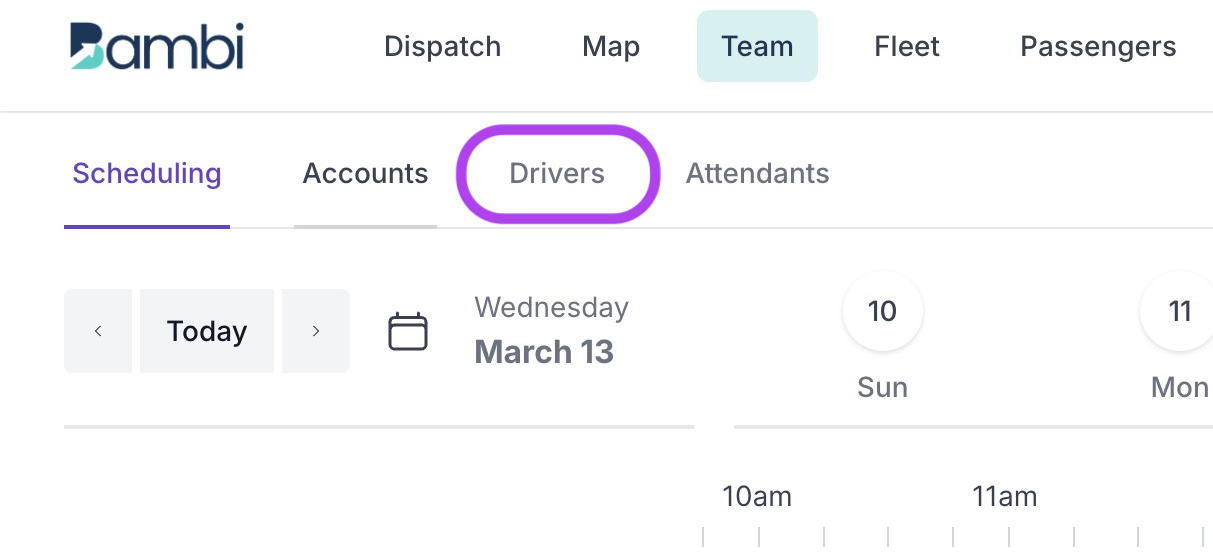
1. Navigate to “Driver” on the Team Sub-Menu
2. Tap the green “Add a Driver Profile” button on the top right of the navigation

3. Select a Member to Add them as a Driver
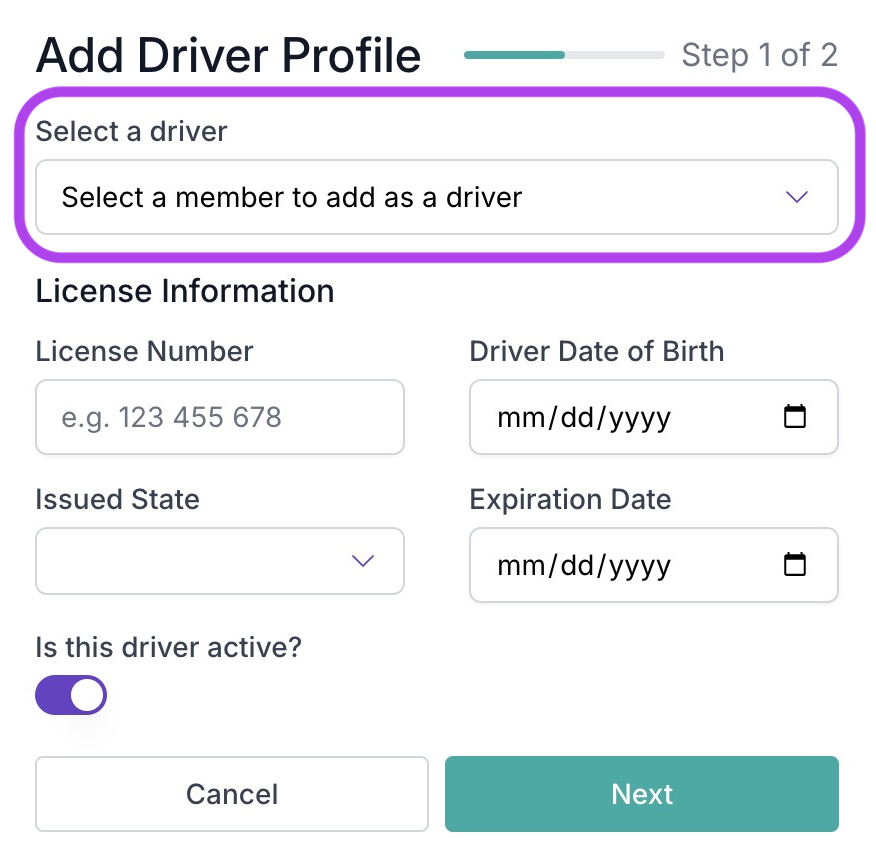
Note: If you can’t find a person to add as a Driver, go back to Adding User Accounts and make sure they have a member account setup
4. Add Legal Driver Information: License Number, DOB, Issuing State and Expirations Date for compliance
5. Activate Driver: Toggle “Is this Driver Active?”
Proceed to the “Next” step
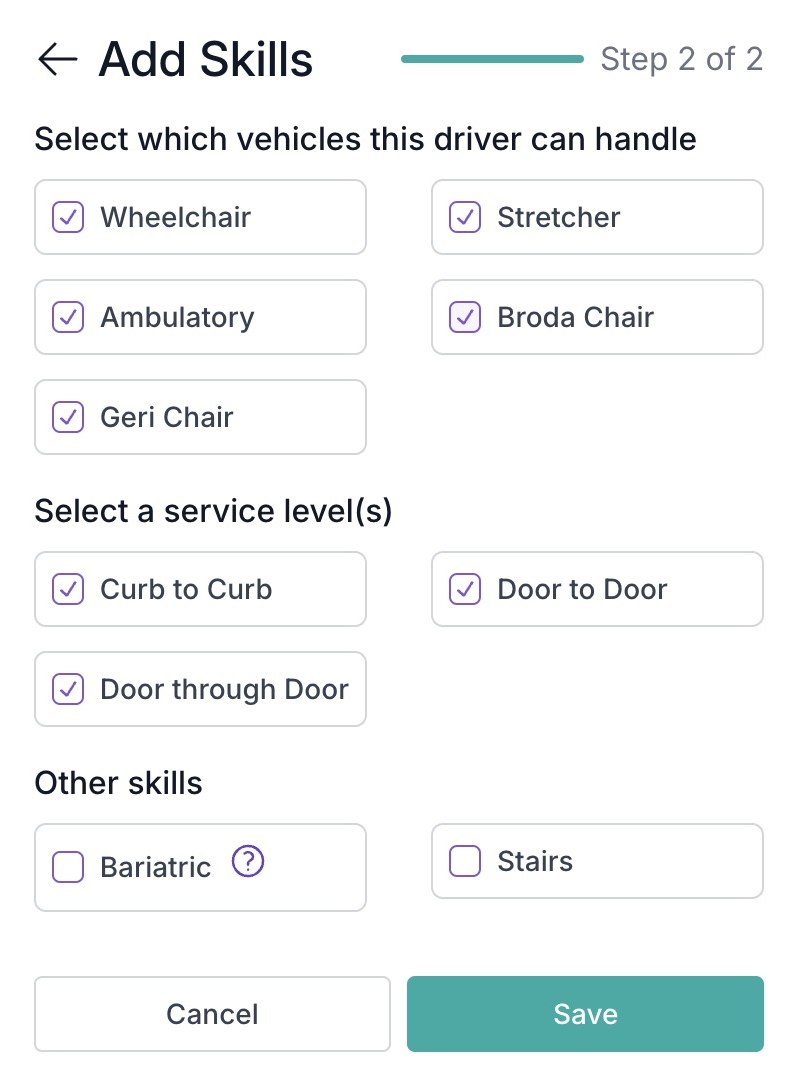
6. Select which vehicle type(s) this driver can handle:
Ambulatory Load / Unload: Passenger is able to walk.
Broda Chair Load / Unload: Specialized wheelchair.
Geri Chair Load / Unload: Basic Geriatric chair.
Stretcher Load / Unload: Stretcher Cot.
Wheelchair Load / Unload: Basic wheelchair.
Wheelchair XL Load / Unload: Extra-Large or Bariatric wheelchair
7.Select a service level(s):
Curb to Curb: Passenger is picked up at the curb and dropped off at the curb.
Door to Door: Passenger is picked up at door and dropped off at door.
Door Through Door: Passenger is met inside pickup location (if necessary) and dropped off inside destination (if necessary).
8. Select any ‘Other’ skills: (Bariatric & Stairs)
Last but not least: Tap “Save”
Note: You can Edit these settings anytime or Delete a Driver by tapping the “Edit” Pencil icon for any listed Driver
Note: The unique email address associated with each team member will serve as both their account identifier for receiving the Bambi welcome email and their login username for accessing the platform