How to Collect Missing Signatures — Bambi NEMT Driver App
Last updated: March 27, 2026
For many trips, payers require a signature to authorize and release payment. If you accidentally close the app or skip the initial signature screen during the pickup process, the Bambi: NEMT Driver App is designed to remind you so that your company still gets paid.
Follow these simple steps to collect a required signature if it was missed earlier in the trip.
Step 1: The Missing Signatures Warning
If you missed the initial signature screen, the app will automatically catch the error when you attempt to complete the trip.
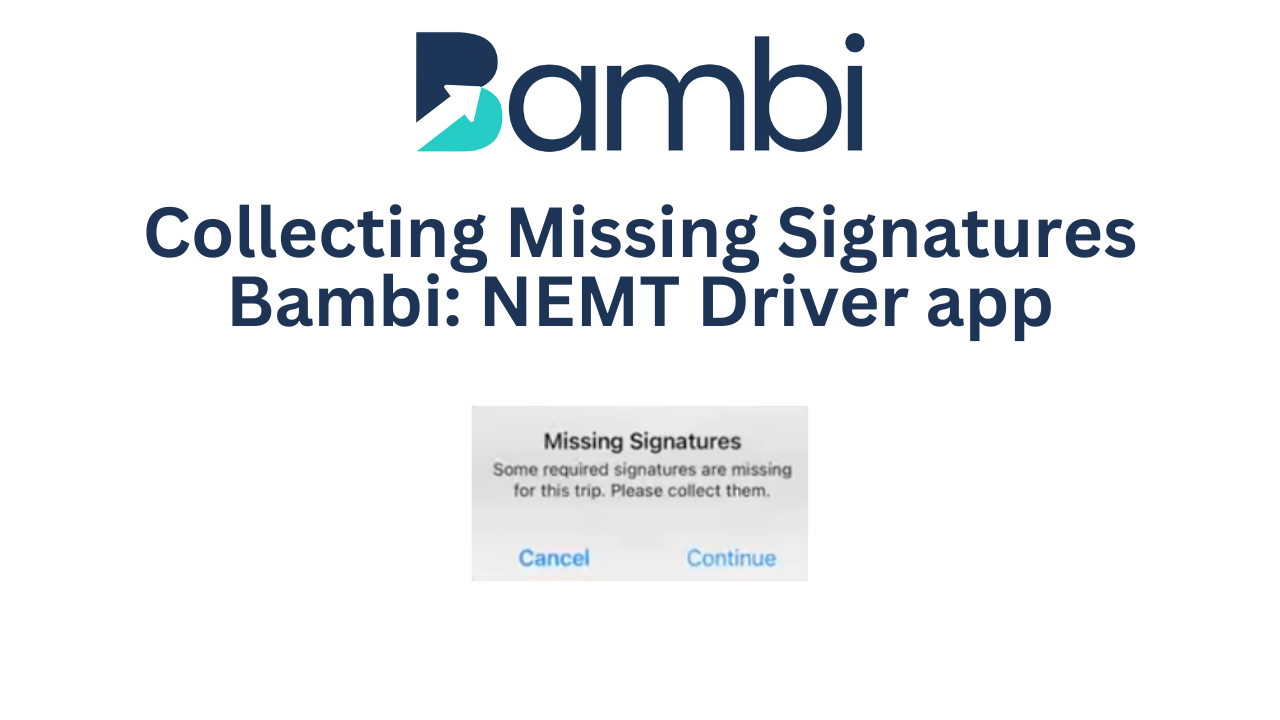
When you arrive at the destination and tap the I'm at Dropoff button, a warning popup will appear on your screen stating: "Missing Signatures: Some required signatures are missing for this trip. Please collect them."
Tap Continue on this popup to be instantly redirected to the signature collection pad.
Step 2: Collect the Signature
On the "Please provide the passenger's signature" screen, have the passenger (or authorized signer) draw their signature directly inside the blank white box using their finger.
If a mistake is made, you can tap the blue Clear Signature button below the box to start over.
Step 3: Specify the Signer
Below the signature pad, tap the Signed By dropdown menu.
Select the correct role of the person who just signed the screen (Options include: Passenger, Guardian, Facility Employee, or Passenger Unable To Sign).
Step 4: Save and Complete the Trip
Once the signature is captured and the signer is selected, tap the black Continue button at the bottom of your screen.
The signature will securely save to the trip record, and you will be returned to your main active dispatch screen.
You can now successfully update your status to At Dropoff and tap Finish Trip to close out the assignment.