Billing
Last updated: March 27, 2026
Manage Invoices
Tap on the icons on the right side of each individual row for invoices to edit, pay, download, print or delete invoices.
Edit an Invoice: Tap the “Edit” Pencil icon.
Pay Invoice: Tap the “Dollar Sign” icon
Select payer
Fill out Amount
Process Credit Card
Mark as Paid
Tap “Confirm” to Process
Download Invoice: Tap “Download” cloud icon to download invoice to your local computer
Print Invoice: Tap “Print” icon to push Invoice to print
Delete Invoice: Tap “Trash” icon to delete Invoice
Note: Download Multiple Invoices over a time period by tapping the “Download Invoices” cloud icon on the top right of the navigation bar
Payouts
Navigate to the “Payouts” Sub-Menu in Billing to view payouts.
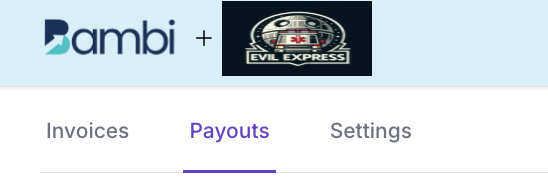
Note: Payouts take 48-72 hours before hitting your bank account. However, the VERY FIRST transaction will take 5-8 business days to be paid to your account THEN it will revert to 48-72 hours
Invoice Settings
Navigate to the “Settings” Sub-Menu in Billing to manage invoice settings.
Invoice: Auto-generating invoice number settings
-Create Invoice Prefix
-Invoice Seed Number
Add Organization Billing contact information: Billing contact information, appears on the invoice
-Billing Email
-Billing Address
-Billing Phone
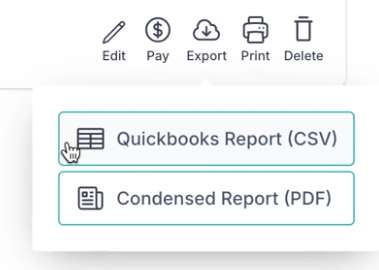
Note: This export will be in CSV format.
Note: You can also download a Condensed Report (PDF)